Let's Talk 🙃
Partner With TMQM – Create & Earn From Educational Quiz Content
We are seeking experienced educators to partner with us in developing high-quality quiz content for students in Preschool through 12th Grade.

This is the HOME screen the way it is the first time you run TMQM.exe before the program is licensed. The line under UNLICENSED is the Machine ID line showing the ID of your computer. You will click on the Copy button and then paste that into an E-mail to Dennis@TeachMeQuizMe.com. That Machine ID will be turned into a license key and returned to you. You will copy it and paste it into the Activation line using the Paste button and then you will press the Activate button. You will see License: OK. You now have full access to all capabilities of TMQM.

Once you see License: OK you need to know all program capabilities. You are a very early user of TMQM. The longer term plan is to have hundreds and thousands of quizzes, but for the near term what you see is what you get as a trial user with the quizzes mostly being for demonstration purposes. The main exception is that the first quizzes can be very useful for preschool and kindergarten teachers and parents. Soon, users will be able to create their own quizzes for their own uses or for sale through the soon to be TMQM website.
The Student line can be used to add children/students so each child or user is tracked with his/her own statistics and success tracking over time. The Teacher Unlock button is controlled by the parent or teacher to add or remove students. Students will not be able to answer under another child’s name. The pass code is currently set at 163.
Every available quiz is in one folder which is accessed through the Quiz drop-down menu. The menu shows the quiz name followed by the quiz type, the number of questions previously answered correctly, followed by total number of questions in the quiz.
Mastered when 1 2 3 right answers is used to set the number of times each question must be answered correctly prior to being Mastered and not being presented again. Once all questions in a quiz are Mastered then the whole quiz is Mastered and identified as such in the drop-down quiz selection.
The next line has CONTINUE RESTART EXIT. Continue starts a quiz where previously left off without disturbing the statistics. Restart causes previous statistics to be set to zero giving the student a fresh start. Exit terminates the program.
The next line enables Quiet Room Mode (no wake word needed) When wishing to verbally answer questions, a “wake word” is needed in a noisy room to alert the program that the next word or words are to be accepted as the answer. Our version of “Alexa” or “Hey Google” is GO. To verbally answer “3 + 4 =” you would say “GO 7”. An alternative to a go word can be a presentation clicker. With the clicker you can press the clicker and then say “7” in the previous example. Now, if you are in a quiet room you can let the program know that when it presents a question, an answer will soon follow. You should know that voice input is open to misinterpretation by the program. Young children may only be able to answer verbally so see how you and your child can benefit from voice input.
We all know that children are bored easily and have short attention spans. For that reason the next two items are provided to help keep a child’s interest. The Student area on the lower left represents a file of pictures intended to be pictures of the student. Most children love to look at pictures of themselves. If you can load numerous pictures, a picture will be presented to the child after each return to the home screen without repeat until all pictures have been viewed. The student may enlarge any picture of interest prior to moving on to a new quiz.
To also break up the work part learning, we have the Pun Pile, which is a collection of puns. After a child has answered 10 or more questions correctly and has returned to the home screen, a silly pun is read aloud to hopefully lighten the moment and perhaps raise a smile.
Between the student pictures and the Pun Pile we have some gentle reminders for hands free navigation. Again, the student can navigate quizzes using a mouse, or verbally with a wake word (GO) or a presentation clicker or in Quiet Room mode. CHOOSE opens the quiz drop-down, DOWN and UP to go down and up in the quiz menu. Add a number to go faster (Down 10 etc.). SELECT to select a quiz.
Finally, on the bottom of the home screen, you will see the words the program is hearing. You will start to notice that you may say a word like CHOOSE and the program hears SHOES and yet processes it as CHOOSE. We’re working on accepting similar words when logically appropriate.
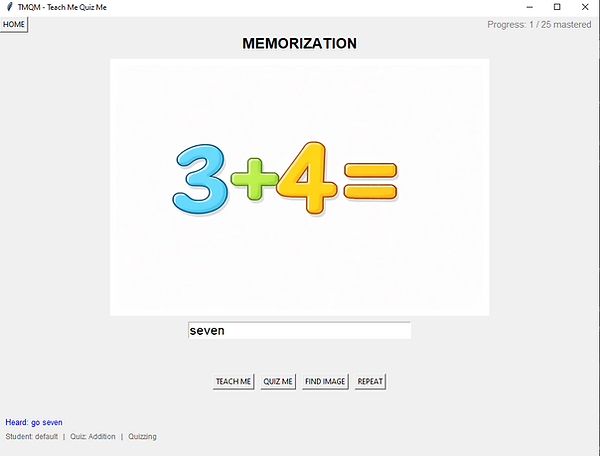
The next few images are from typical quiz screens. The upper left corner returns the student to the home page.
The upper right corner tracks the students progress on this quiz. This example shows 1 correct out of a total of 25.
Centered on the top of each quiz is the quiz type.
Next we have the quiz window. In this example we’re looking for a numerical answer. The question was created such that either “7” or “seven” are correct.
Under the question box we have the answer text box.
To this point we haven’t talked much about the TEACH ME part of TMQM. The first button under the answer text box is TEACH ME. If this is pressed (or spoken), the answer is displayed and voiced by TMQM. If you want to learn the material before being quizzed on it you can sequentially review the questions as you are trying to memorize answers. Imagine a child trying to learn the alphabet or you trying to memorize flags of the world. TEACH ME must be pressed each time. Press QUIZ ME once and you will stay in quiz mode until TEACH ME is pressed.
FIND IMAGE will search the internet to find an image of “the question.” This is the only function requiring web access.
REPEAT was useful during testing. Ignore!
The bottom left displays what is being heard.
Under that is an area that is helpful during testing.

This is a presentation of the alphabet. The current one is the letter O. Representing O we have an octopus and an owl


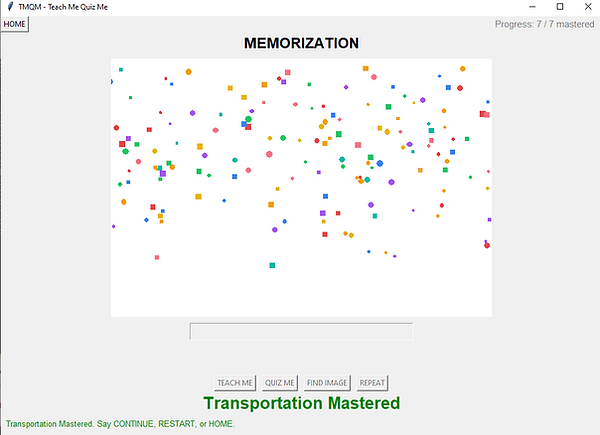
Once a quiz is mastered, confetti drops and the quiz name + Mastered is displayed followed by:
